Rogue Sector Title

    ♦     VJ Mixer    ✣    Projection Mapping Tool      ♦

1) Prepare Media

For best performance, it is highly recommended to convert and compress your videos before importing

Recommended:

      ‣  Encoding: h.264

      ‣  Format: .mp4

      ‣  Resolution: 320 x 240

      ‣  FPS: 30

      ‣  Profile: Baseline (older iPads) or Main (newer iPads)

Follow these steps to convert your videos on your Mac using the transcoder tool: Handbrake


1) On your Mac Desktop: Create and name 2 folders

      ‣  Visuals2Encode

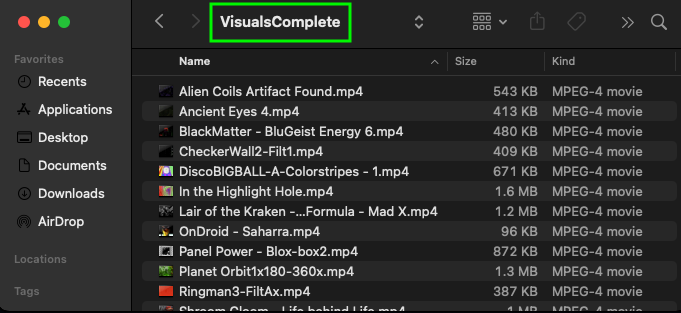
      ‣  VisualsComplete
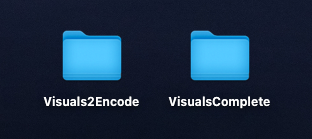
2) Copy and paste your videos into the  Visuals2Encode  folder

3) Download and install  Handbrake 

4) Open Handbrake

5) In Handbrake:

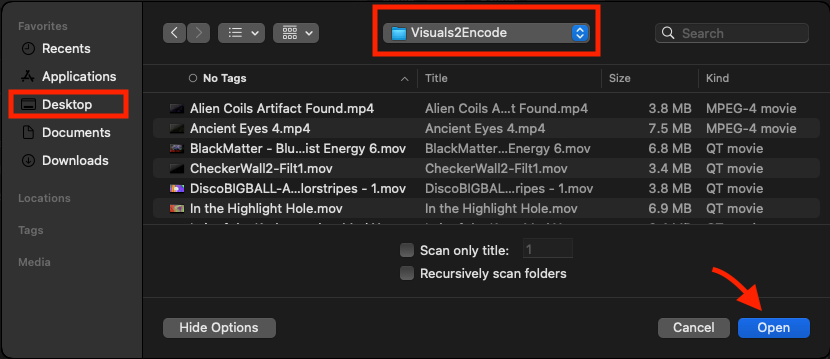
      a)  Click [ Open Source ]

      b)  Select  Visuals2Encode  folder,  click [ Open ]
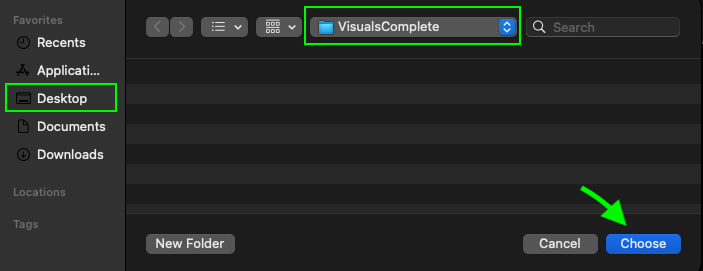
      c)  Click [ Browse ]

      d)  Select  VisualsComplete  folder,  click [ Choose ]
6) In the top tool bar:

      a)  Click [ Presets ]

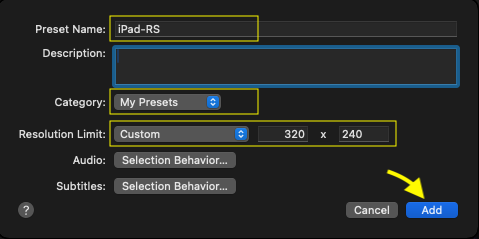
      b)  Select [ New Preset... ]

            ‣  Preset Name: iPad-RS

            ‣  Category: My Presets

            ‣  Resolution Limit: Custom: 320 x 240

            ‣  Select [ Add ]
7) Click tab: Chapters

            ‣  Uncheck [ Create chapter markers ]

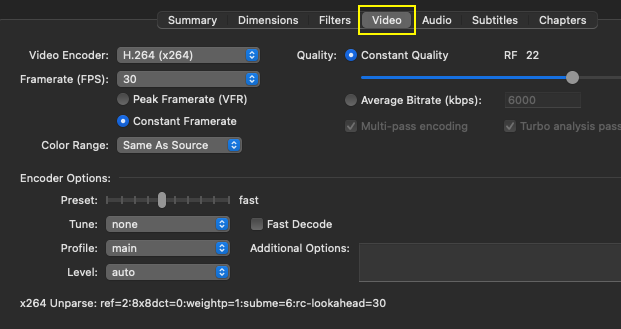
8) Click tab: Video

            ‣  Video Encoder: H.264 (x264)

            ‣  Framerate (FPS): 30

            ‣  Constant Framerate

            ‣  Color Range: Same As Source

            ‣  Preset: fast

            ‣  Tune: None

            ‣  Profile: main

            ‣  Level: Auto

            ‣  Quality: Constant Quality RF 22

            ‣  Level: Auto
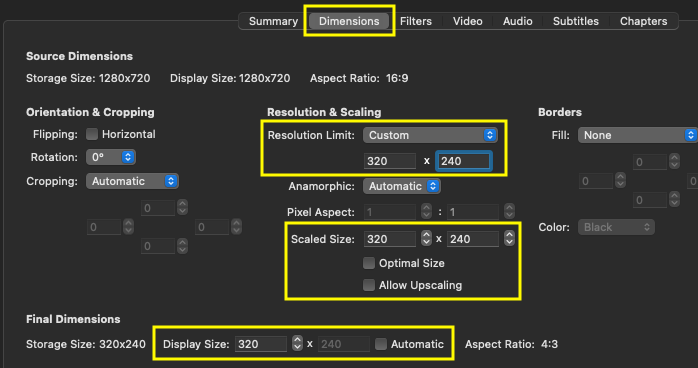
9) Click tab: Dimensions

            ‣  Resolution Limit: Custom: 320 x 240

            ‣  Uncheck: Optimal Size

            ‣  Uncheck: Allow Upscaling

            ‣  Uncheck: Automatic

            ‣  Scaled Size: 320 x 240

            ‣  Display Size: 320 x 240
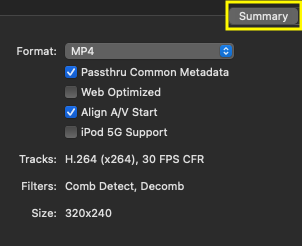
10) Click tab: Summary

            ‣  Format: MP4

            ‣  Check: Passthru Common Metadata

            ‣  Uncheck: Web Optimized

            ‣  Check: Align A/V Start

            ‣  Uncheck: iPod 5G Support
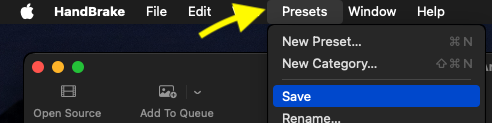
11) In the top tool bar:

      a)  Click [ Presets ]

      b)  Select [ Save ]
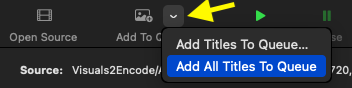
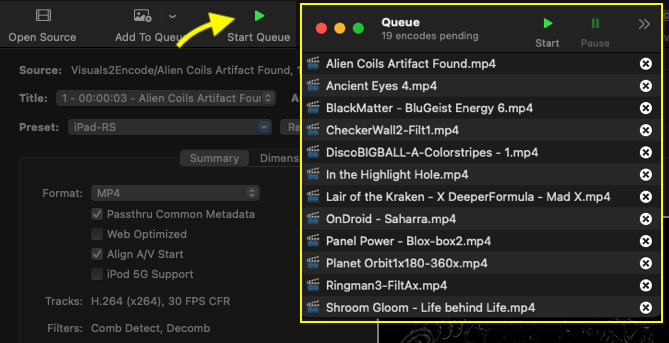
12) Click [ Add To Queue ] dropdown arrow

            ‣  Select [ Add All Titles To Queue ]
13) Click [ Start Queue ]

All of your converted and compressed videos should now be in the  VisualsComplete  folder
2) Sync Media to iPad

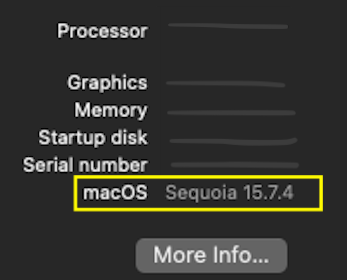
Depending on your Mac Operating System, you will sync the videos to your iPad using Apple TV or iTunes

On your Mac Desktop, click the Apple Menu Apple Icon at the top of the toolbar and select [ About this Mac ]

Apple Menu

Sync Videos to iPad using Apple TV

Steps

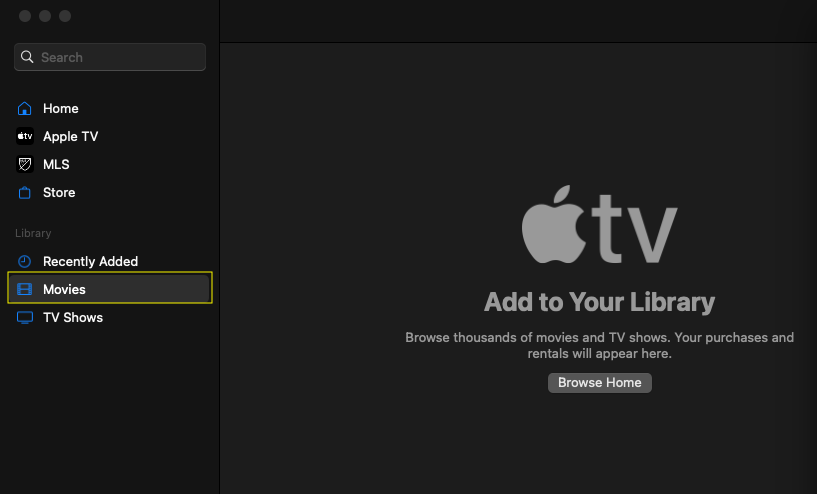
1) On your Mac Desktop:  Open [ Apple TV ] Apple TV Logo

2) In Apple TV:  Click  [ Movies ]  tab

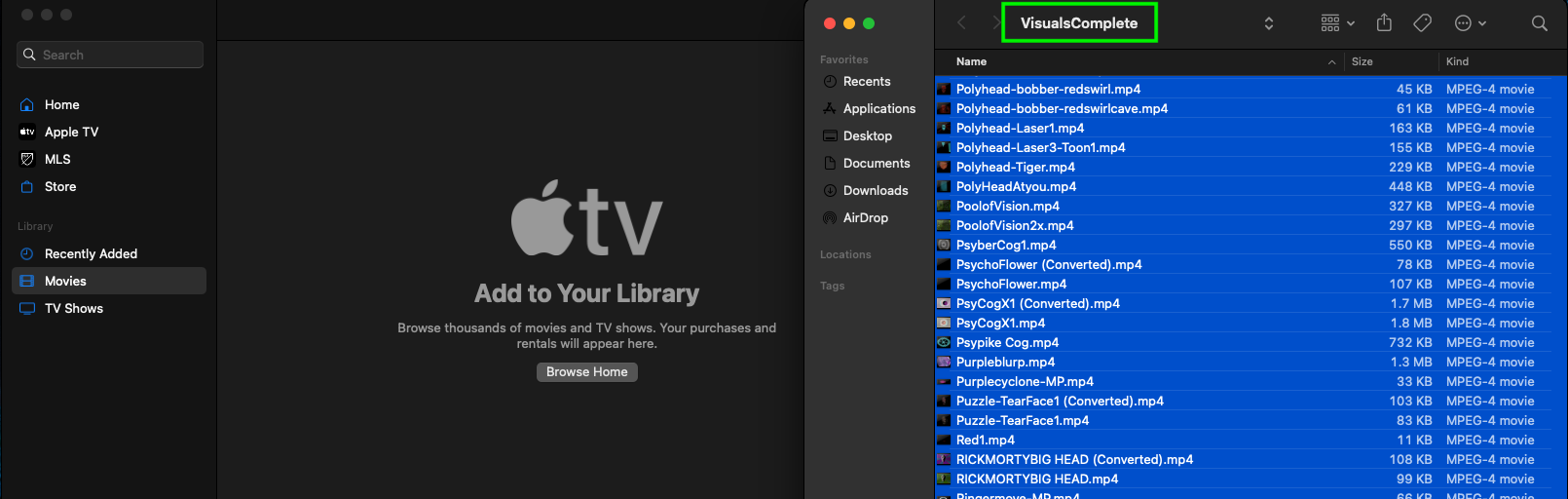
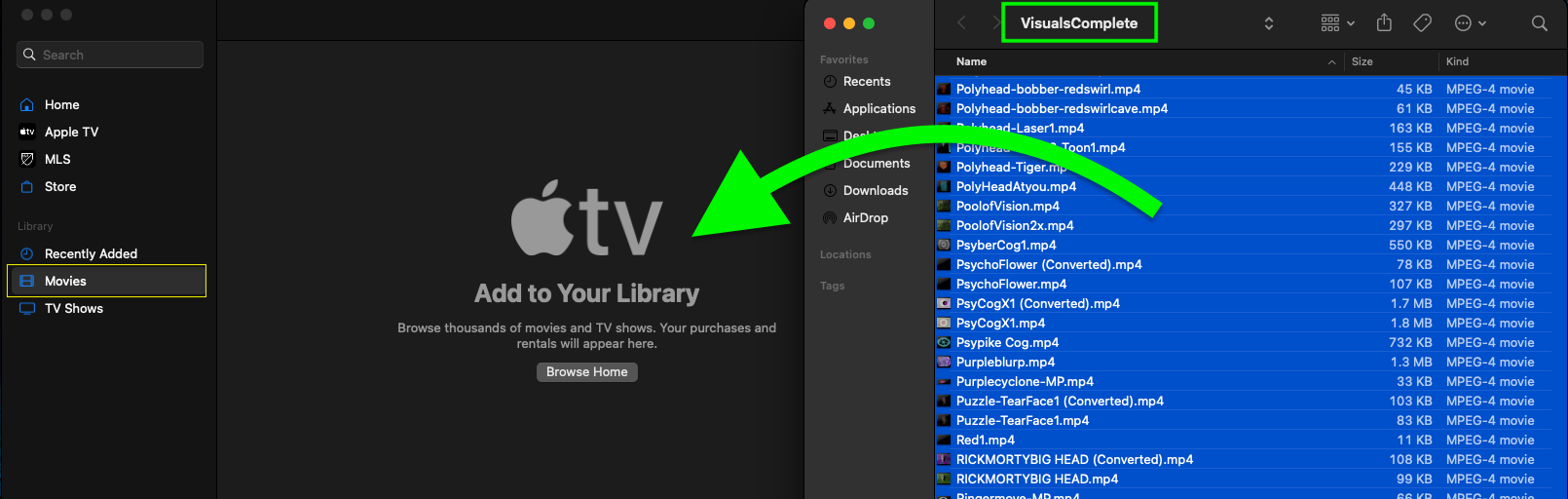
3) Open your folder with encoded videos:    VisualsComplete

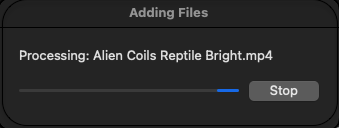
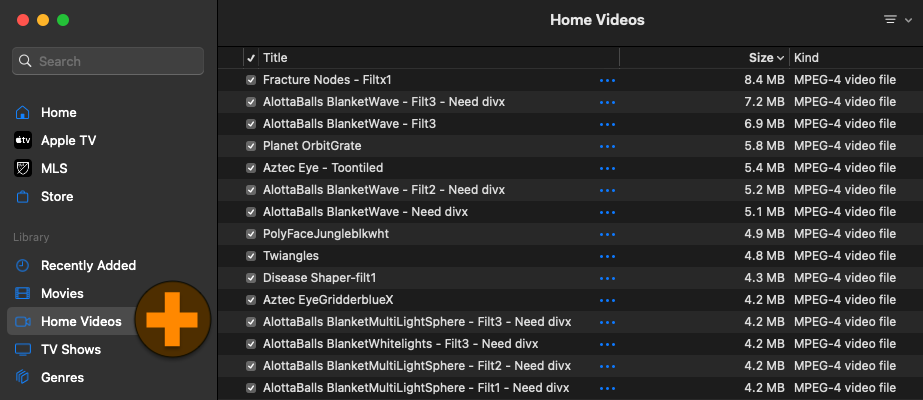
4) Highlight all of your video files and drag them into the Apple TV Movies tab

5) When the videos have completed copying over, you should see a new tab:  [ Home Videos ]

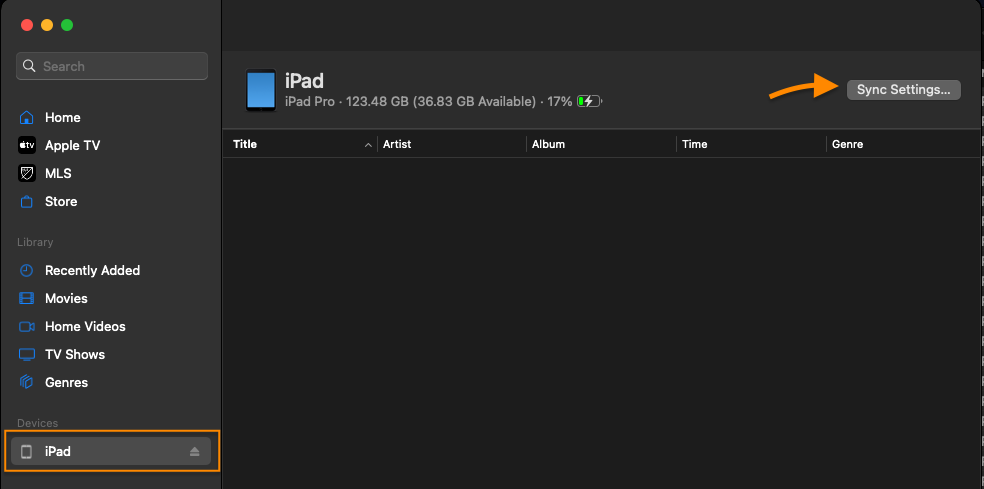
6) Plug in and connect your iPad to your Mac

7) Select your iPad, then click [ Sync Settings... ]

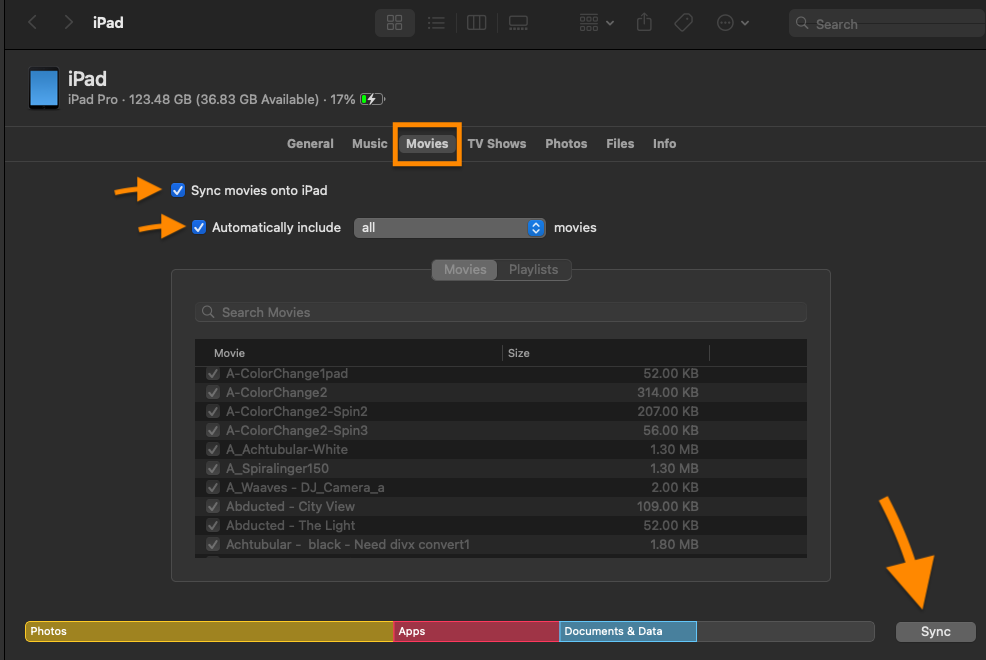
8) Select the [ Movies ] tab, then click [ Sync ]


The videos will sync to your iPad

When finished you can unplug your iPad from your Mac

You are now Ready! Open Rogue Sector and have fun!

Sync Videos to iPad using iTunes

Steps

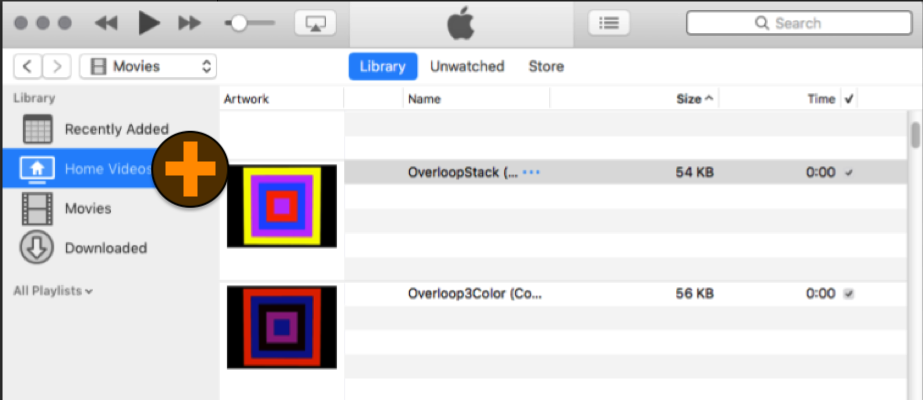
1) On your Mac Desktop:  Open [ iTunes ] iTunes Logo

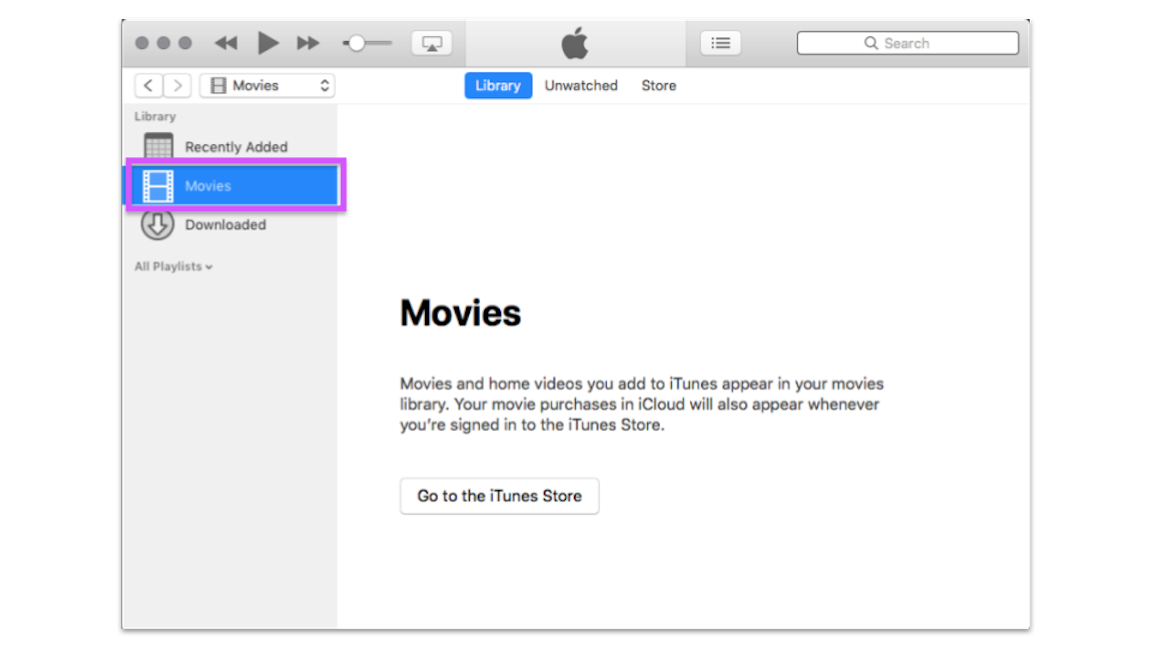
2) In iTunes:  Click  [ Movies ]  tab

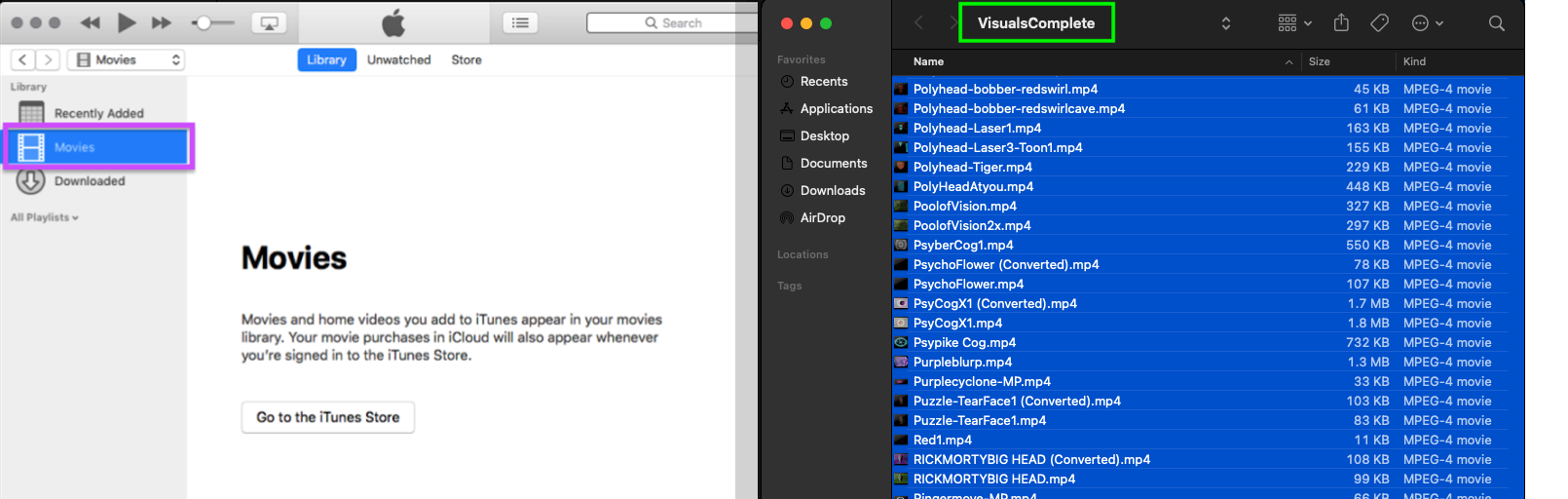
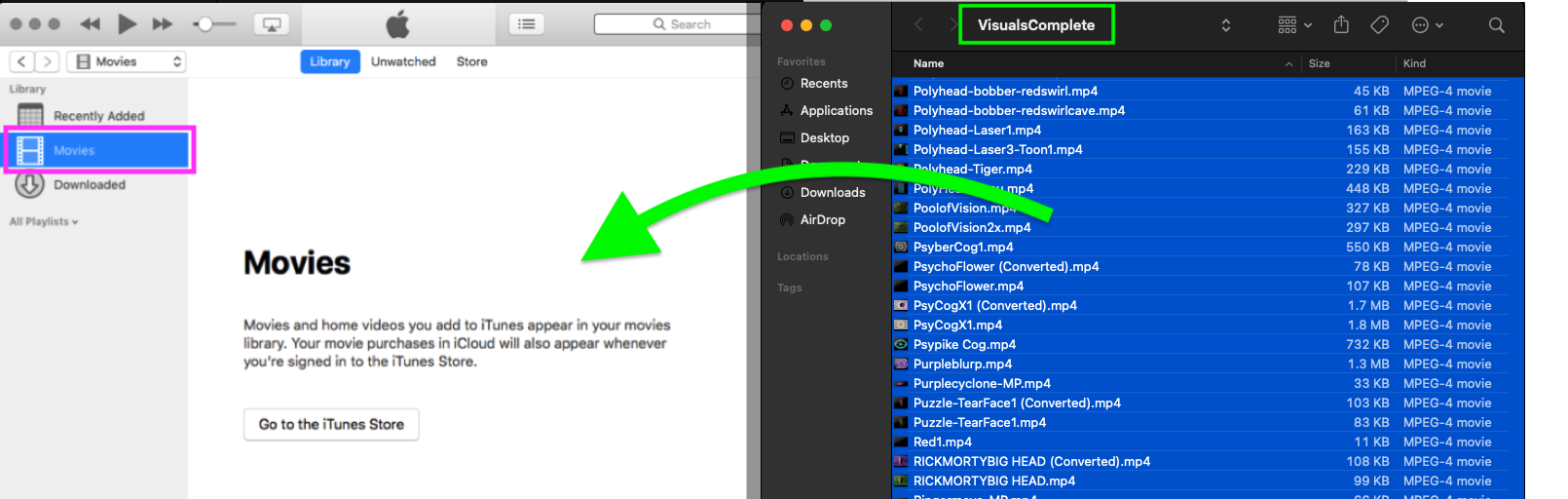
3) Open your folder with encoded videos:    VisualsComplete

4) Highlight all of your video files and drag them into the iTunes Movies tab

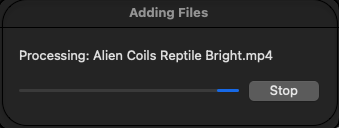
5) When the videos have completed copying over, you should see a new tab:  [ Home Videos ]

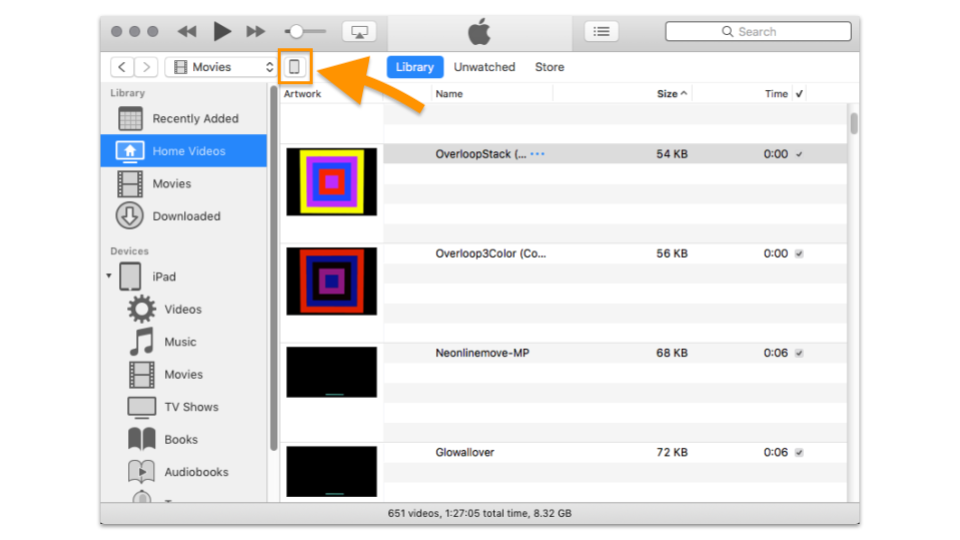
6) Plug in and connect your iPad to your Mac

7) Click the [ iPad icon ]

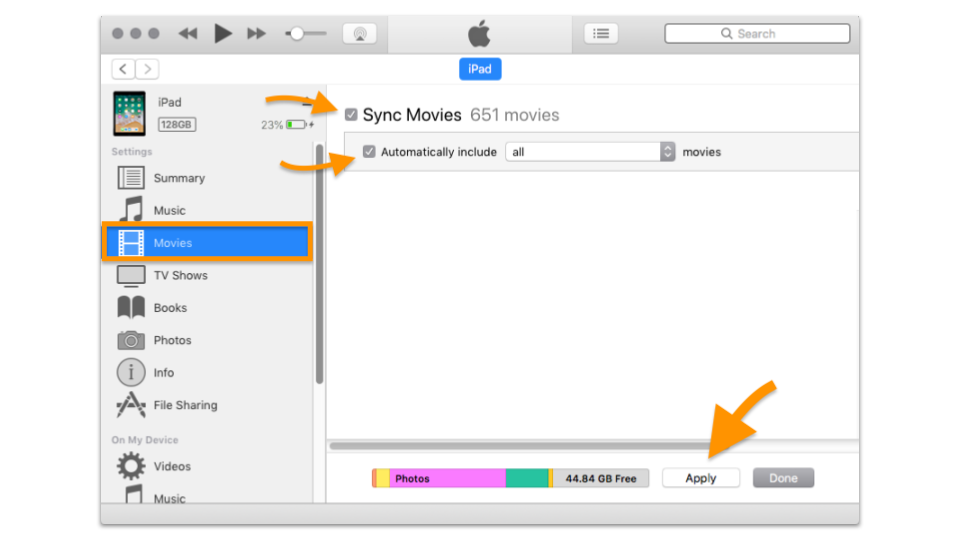
8) Select the [ Movies ] tab

            ‣  Check: 'Sync Movies'

            ‣  Check: 'Automatically include all movies'

            ‣  Select: [ Apply ] to sync


The videos will sync to your iPad

When finished you can unplug your iPad from your Mac

You are now Ready! Open Rogue Sector and have fun!

Make selection above for next instructions