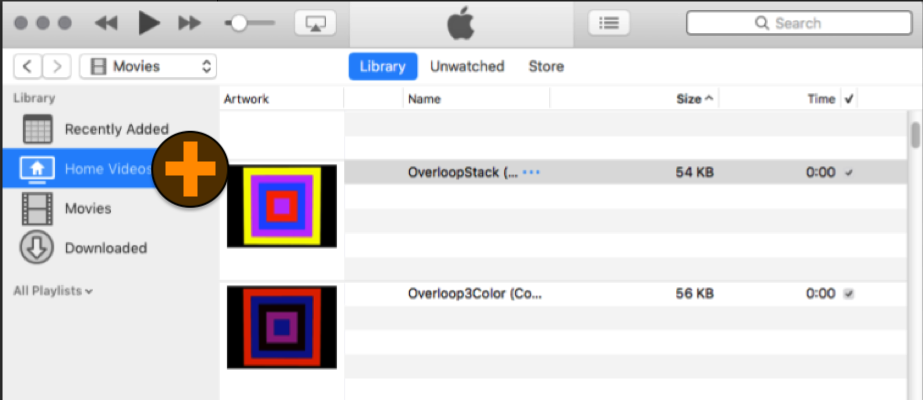
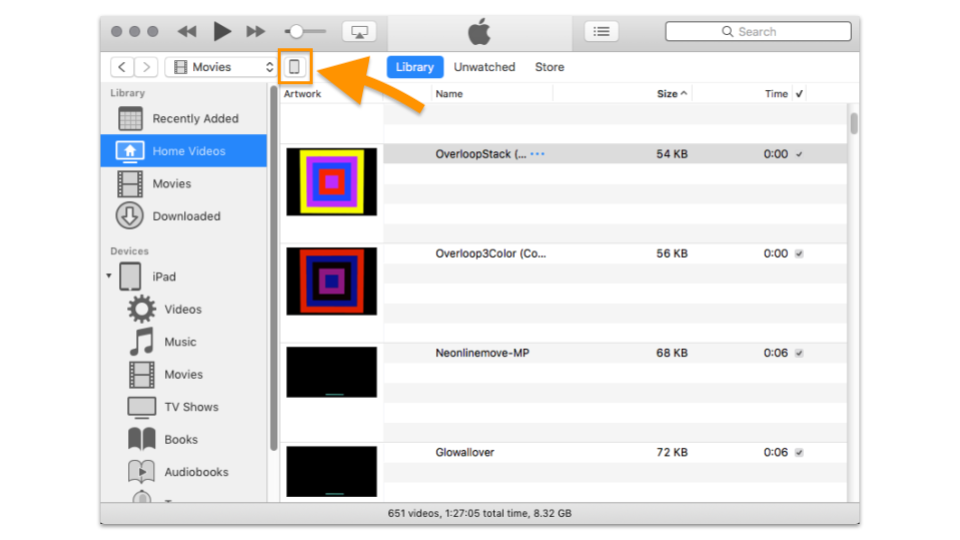
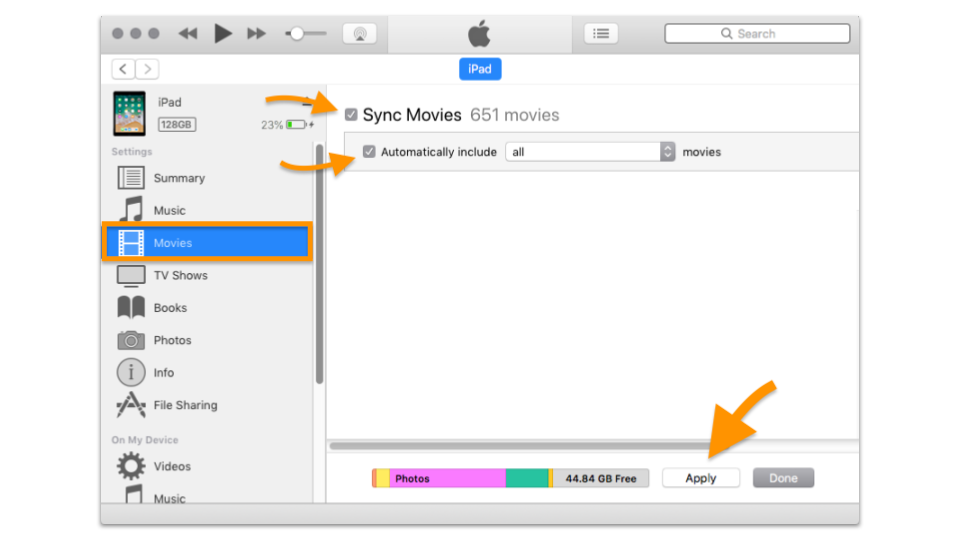
For best performance, it is highly recommended to convert and compress your videos before importing
Recommended:
‣ Encoding: h.264
‣ Format: .mp4
‣ Resolution: 320 x 240
‣ FPS: 30
‣ Profile: Baseline (older iPads) or Main (newer iPads)
Follow these steps to convert your videos on your Mac using the transcoder tool: Handbrake
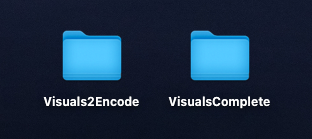
1) On your Mac Desktop: Create and name 2 folders
‣ Visuals2Encode
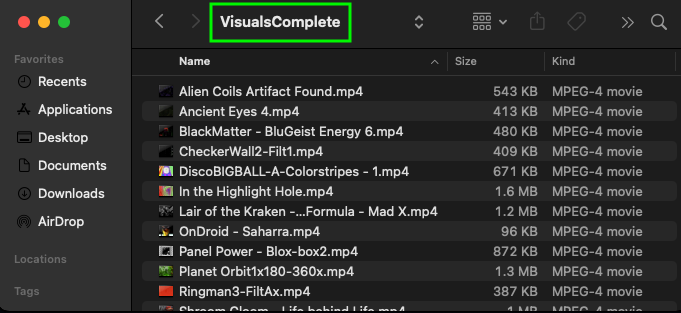
‣ VisualsComplete
2) Copy and paste your videos into the Visuals2Encode folder
3) Download and install Handbrake
4) Open Handbrake

5) In Handbrake:
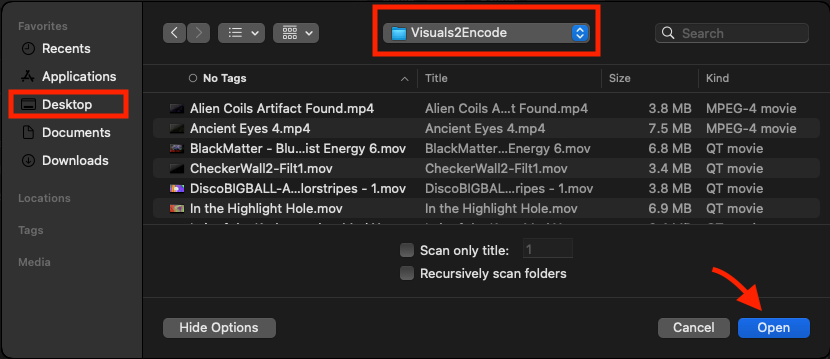
a) Click [ Open Source ]

b) Select Visuals2Encode folder, click [ Open ]
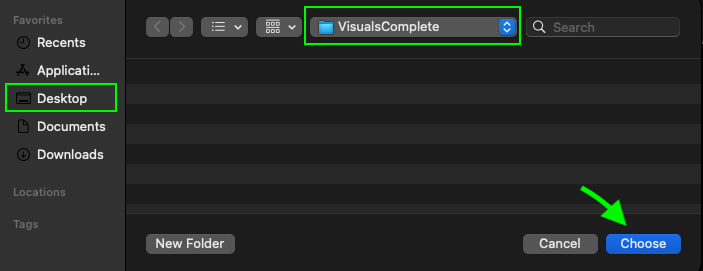
c) Click [ Browse ]

d) Select VisualsComplete folder, click [ Choose ]
6) In the top tool bar:
a) Click [ Presets ]

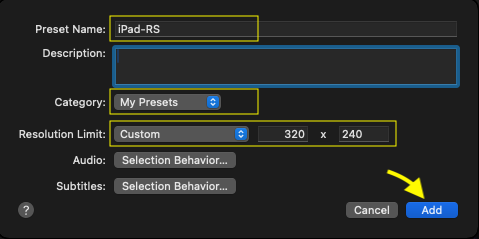
b) Select [ New Preset... ]
‣ Preset Name: iPad-RS
‣ Category: My Presets
‣ Resolution Limit: Custom: 320 x 240
‣ Select [ Add ]
7) Click tab: Chapters
‣ Uncheck [ Create chapter markers ]

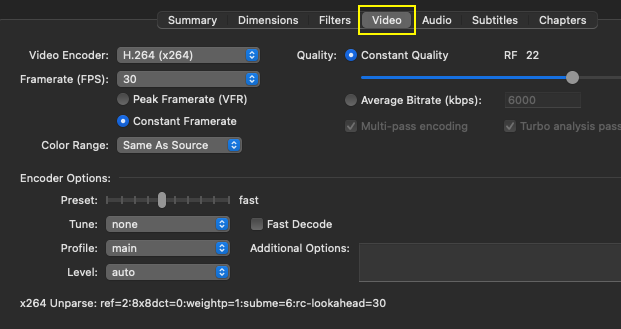
8) Click tab: Video
‣ Video Encoder: H.264 (x264)
‣ Framerate (FPS): 30
‣ Constant Framerate
‣ Color Range: Same As Source
‣ Preset: fast
‣ Tune: None
‣ Profile: main
‣ Level: Auto
‣ Quality: Constant Quality RF 22
‣ Level: Auto
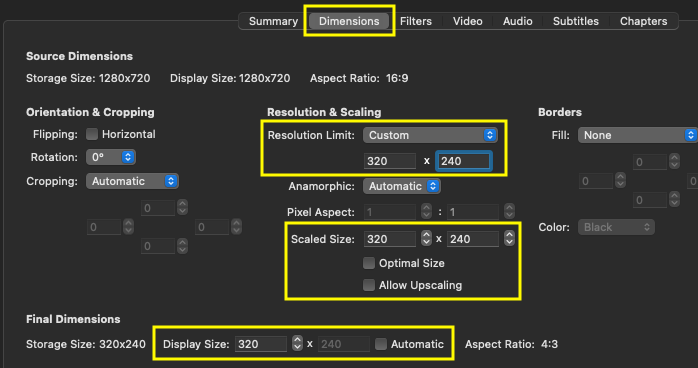
9) Click tab: Dimensions
‣ Resolution Limit: Custom: 320 x 240
‣ Uncheck: Optimal Size
‣ Uncheck: Allow Upscaling
‣ Uncheck: Automatic
‣ Scaled Size: 320 x 240
‣ Display Size: 320 x 240
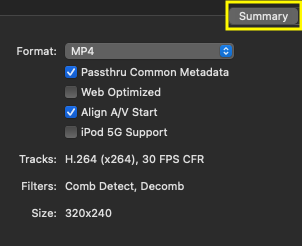
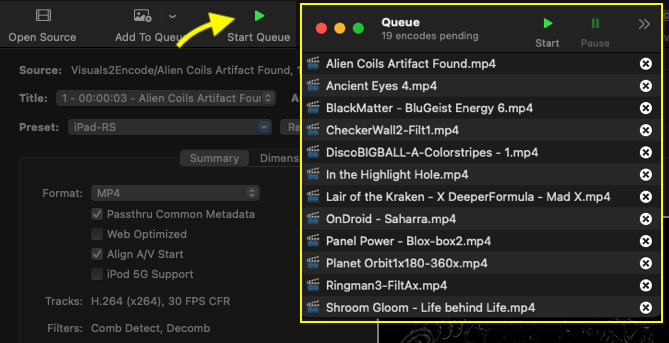
10) Click tab: Summary
‣ Format: MP4
‣ Check: Passthru Common Metadata
‣ Uncheck: Web Optimized
‣ Check: Align A/V Start
‣ Uncheck: iPod 5G Support
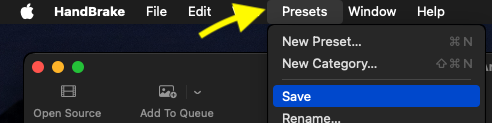
11) In the top tool bar:
a) Click [ Presets ]
b) Select [ Save ]
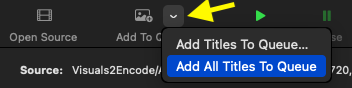
12) Click [ Add To Queue ] dropdown arrow
‣ Select [ Add All Titles To Queue ]
13) Click [ Start Queue ]
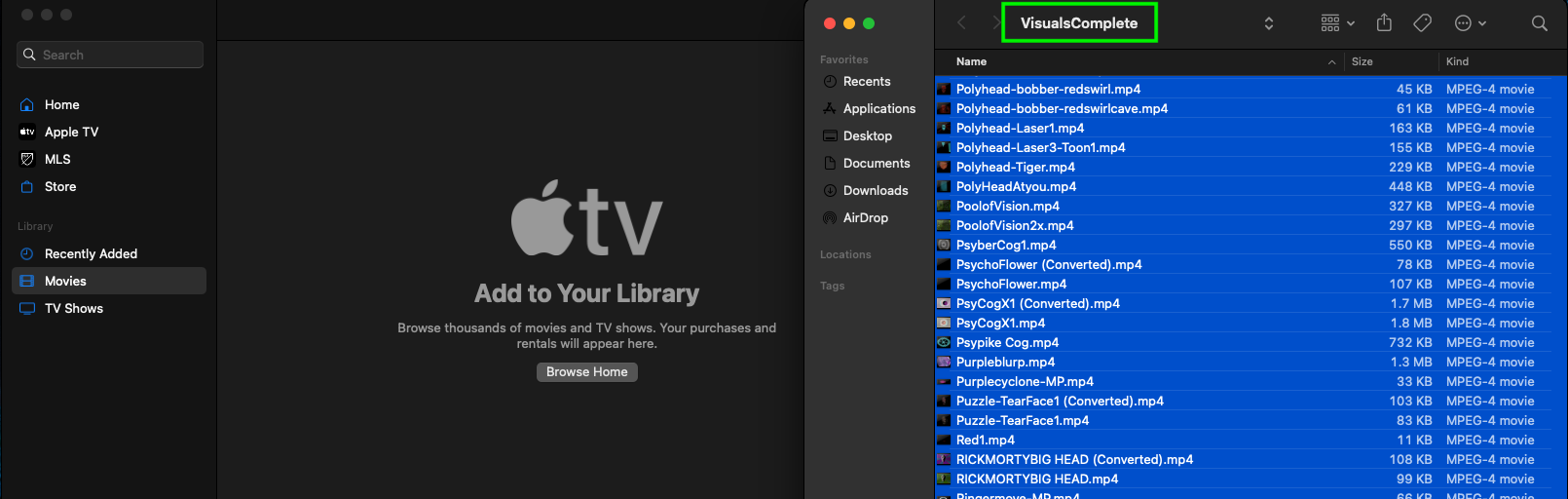
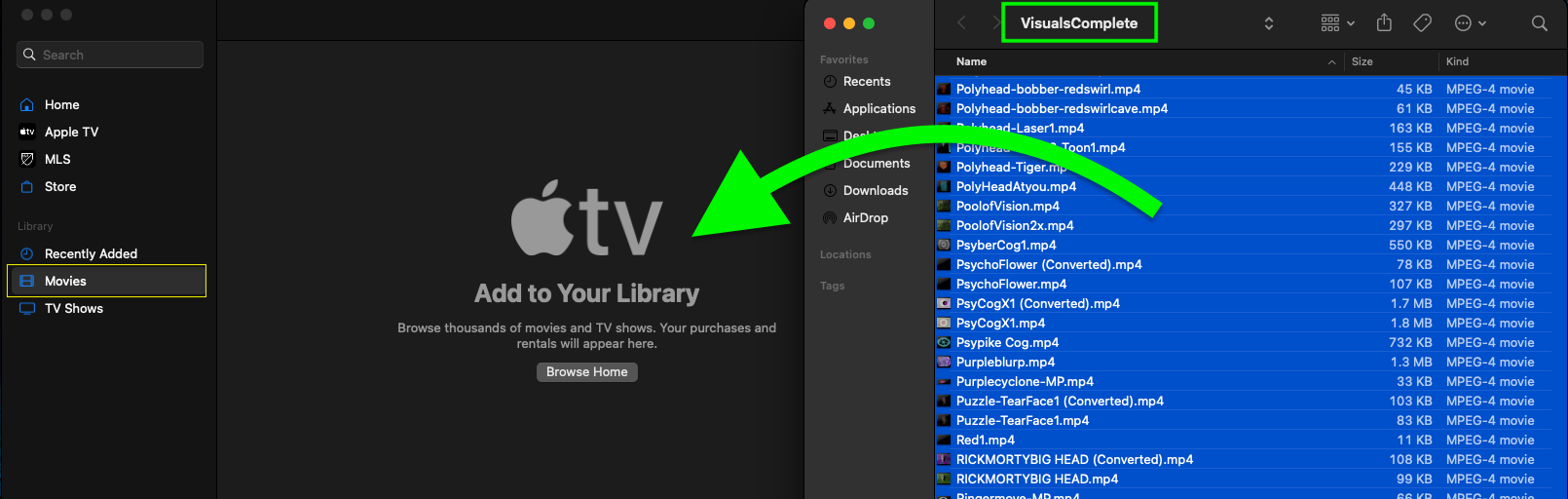
All of your converted and compressed videos should now be in the VisualsComplete folder
 at the top of the toolbar and select [ About this Mac ]