
Rogue Sector Title

    ♦     VJ Mixer    ✣    Projection Mapping Tool      ♦

App Store

Download Rogue Sector on the App Store for iPad

    ‣ Rogue Sector is a VJ + Projection Mapping tool for iPad

    ‣ Import up to 100 video files from your synced AppleTV or iTunes Media Library

    ‣ Switch between 2 main views:

             ◦ Rogue Command  to mix and control multiple videos / parameters

             ◦ Rogue Mapper  to create Sectors for displaying and warping the visuals

    ‣ Add a variety of special VFX for your creative playground

    ‣ Connect a projector for External Output

    ‣ Save / Load your sets

    ‣ Built with native iOS frameworks
Requirements

OS Version:
iPadOS 15 or later
Compatible iPad Models:
iPad Pro 9.7"   |   iPad Pro 10.5"   |   iPad Pro 12.9"   |   iPad Pro 13"   |   iPad 8th Gen 10.2"
Connection Type (Newer):
Apple USB-C Digital AV Multiport Adapter (or similar) + HDMI cable + Projector
Connection Type (Older):
Apple Lightning Digital AV Adapter (or similar) + HDMI cable + Projector
Connection (Alt):
Apple AirPlay + Projector
Additional support resources:
◦ Connections: User Guide | Adapter Support | AirPlay Support

◦ USB-C: iPad Models | AV Adapter

◦ Lightning: iPad Models | AV Adapter

*Currently iPad Pro 11" is not compatible | (coming soon)

Features

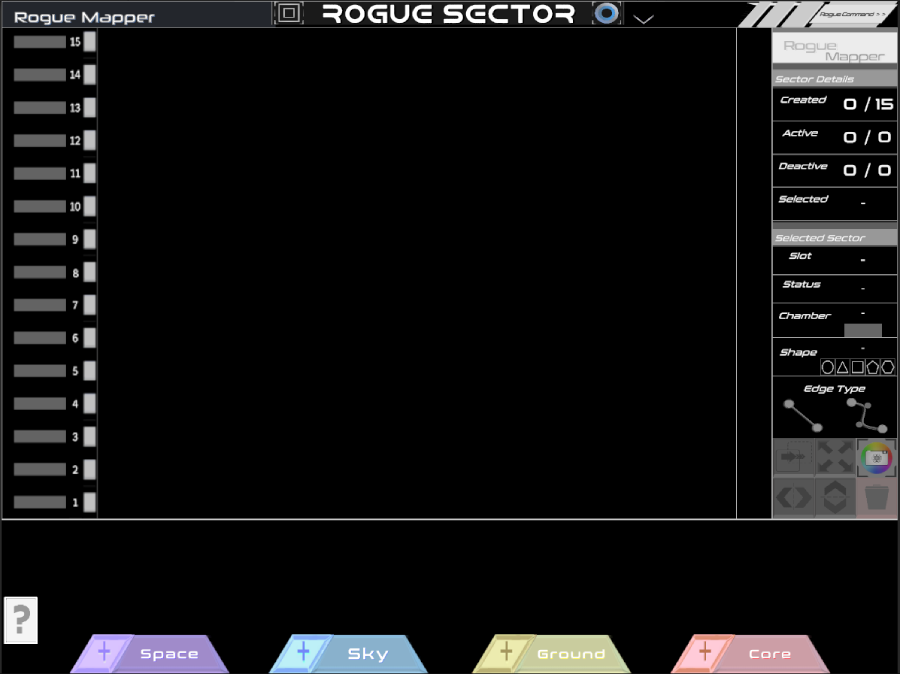
Rogue Mapper Interface
Rogue Mapper View

[ Create Sectors linked to Chambers for Projection Mapping ]

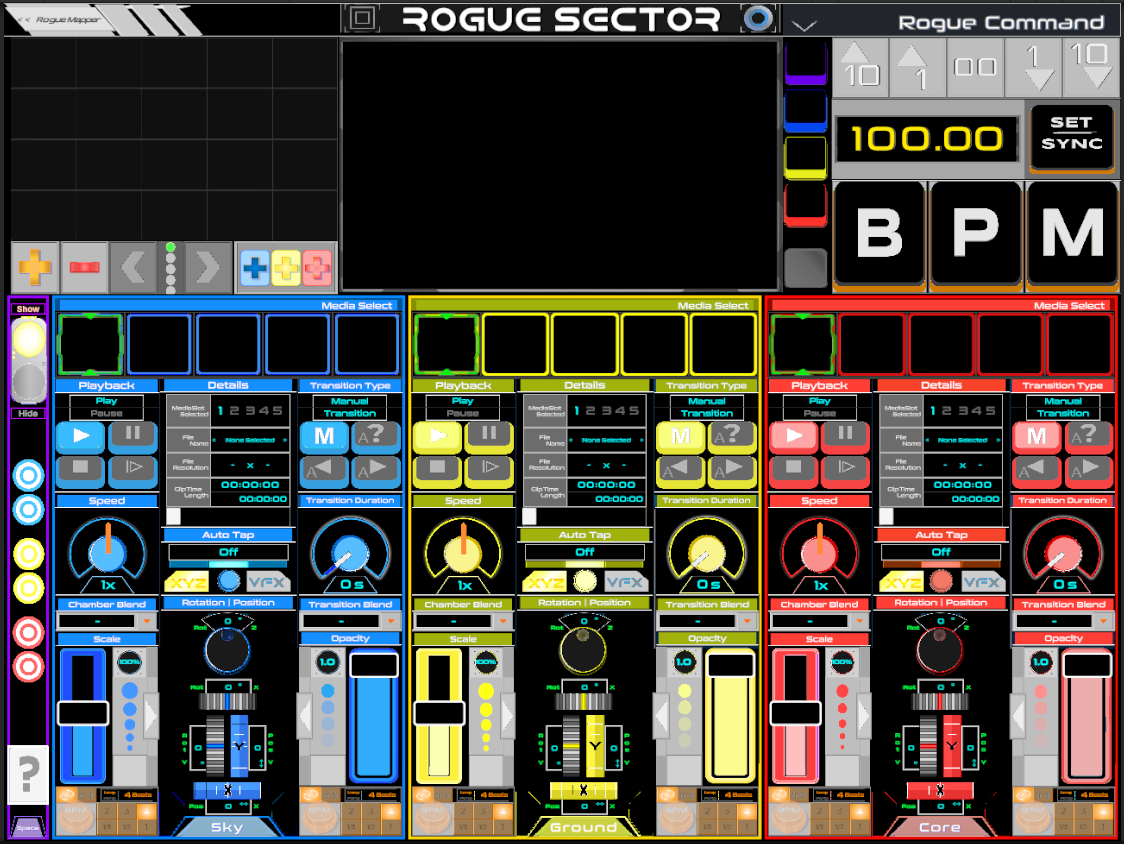
Rogue Command Interface
Rogue Command View

[ Mix & Control Visuals linked to Sectors ]

Interfaces:
Simple 1 button view-change between 2 main interfaces:

  ◦ Rogue Command

      ◦ Import, Play, Add VFX, & Control Parameters of Videos within each Chamber

  ◦ Rogue Mapper

      ◦ Create, Map, & Warp Sectors displaying the Videos linked to each Chamber

External Output:
Connect your iPad to a Projector using a Digital AV Adapter & HDMI Cable or wirelessly through AirPlay

  ◦ Output to any surface with your Projection Mapped Sectors (Rogue Mapper)

    as you Mix Visuals (Rogue Command) & Perform your live VJ Set

Help Guides:
2 available pop-up & page-swipeable Help Guides

  ◦ Accessable from both interface views

Rogue Command

Media Import:
Import up to 100 videos into your set from your iPad Media folder synced with:

  ◦ AppleTV    or     iTunes

Playback:
Chambers linked to mapped Sectors

  ◦ 3 individually controlled Chambers containing 5 media slots each

      ◦ Sky  |  Ground  |  Core

  ◦ Toggle Chamber video preview

  ◦ Video Select Modes

      ◦ Manual  |  Auto

  ◦ Play  |  Pause  |  Stop  |  Play/Beginning  |  Time scrub

Parameter Control
Buttons, Knobs, Sliders

  ◦ Playback Speed  |  Chamber Blend  |  Transition Duration  |  Transition Blend

  ◦ BPM Tap

      ◦ Set/Sync  |  Beat Count  |  Loop  |  Pong

  ◦ Scale & Opacity

      ◦ Manual Mode  |  BPM Mode

  ◦ Rotation & Position

      ◦ Endless Mode  |  Pong Mode

VFX:
16 VFX enhancements

  ◦ Add a VFX group to a Chamber

  ◦ Each group contains 1 or 2 VFX(s) that can be controlled individually

  ◦ Each VFX has a floating, draggable, and expandable pop-out controller

  ◦ Activate and control a variety of special effect parameters and modes, unique to each VFX

Options Menu:
VJ sets

  ◦ Save  |  Load  |  New  |  Delete

Rogue Mapper

Sectors:
Create up to 15 Sectors

  ◦ Choose from 5 base Sector Shapes

      ◦ Circle  |  Triangle  |  Quad  |  Pentagon  |  Hexagon

  ◦ Sectors display video from the linked Chambers

  ◦ Touch, Drag, & Reposition Sectors on the surface

  ◦ Touch & Drag Corner / Curve Handles to Warp & Bend Sector Shapes

Sector Modules:
Controls associated Sector

  ◦ Stacked in an ordered list

  ◦ Drag & Reorder Modules to make Sectors appear in front or behind other Sectors

  ◦ Activate / Deactivate button for individual Sectors

  ◦ Toggle Sector Curve Handles

Special Chamber
Space Chamber

  ◦ Creates Quad Sector

  ◦ 2 Options:

      ◦ Paint Tool - Multi-Touch-Screen Painting

      ◦ Camera Tool - iPad Front / Back Live Camera Feed displayed on Sector

Sector Actions
Action Buttons

  ◦ Duplicate Sector

  ◦ Flip Sector Horizontally

  ◦ Flip Sector Vertically

  ◦ Quad Full Screen

  ◦ Delete Sector

  ◦ Show / Hide

      ◦ Paint Tool  |  Camera Tool

Details Panel
Displays details of your created Sectors